Edit High-Resolution Video on a Modest Laptop With Proxies
Temporary editing copies can make a slow timeline responsive while preserving quality from the original media at export.
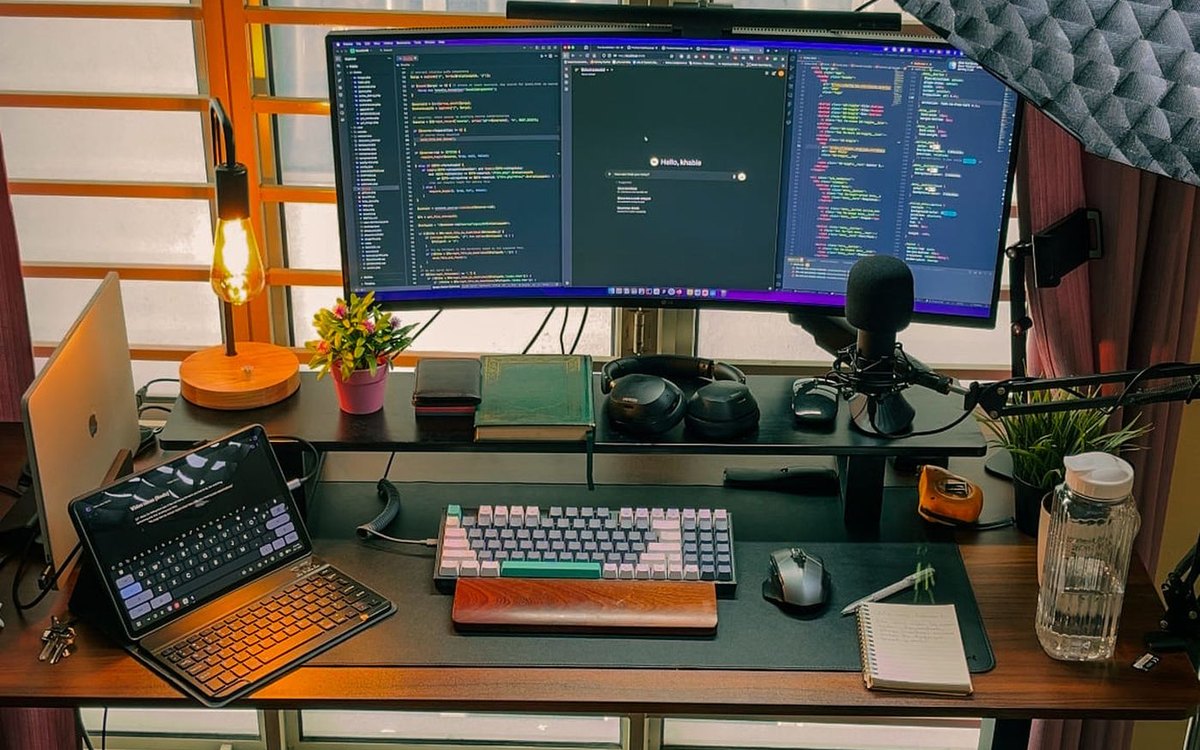
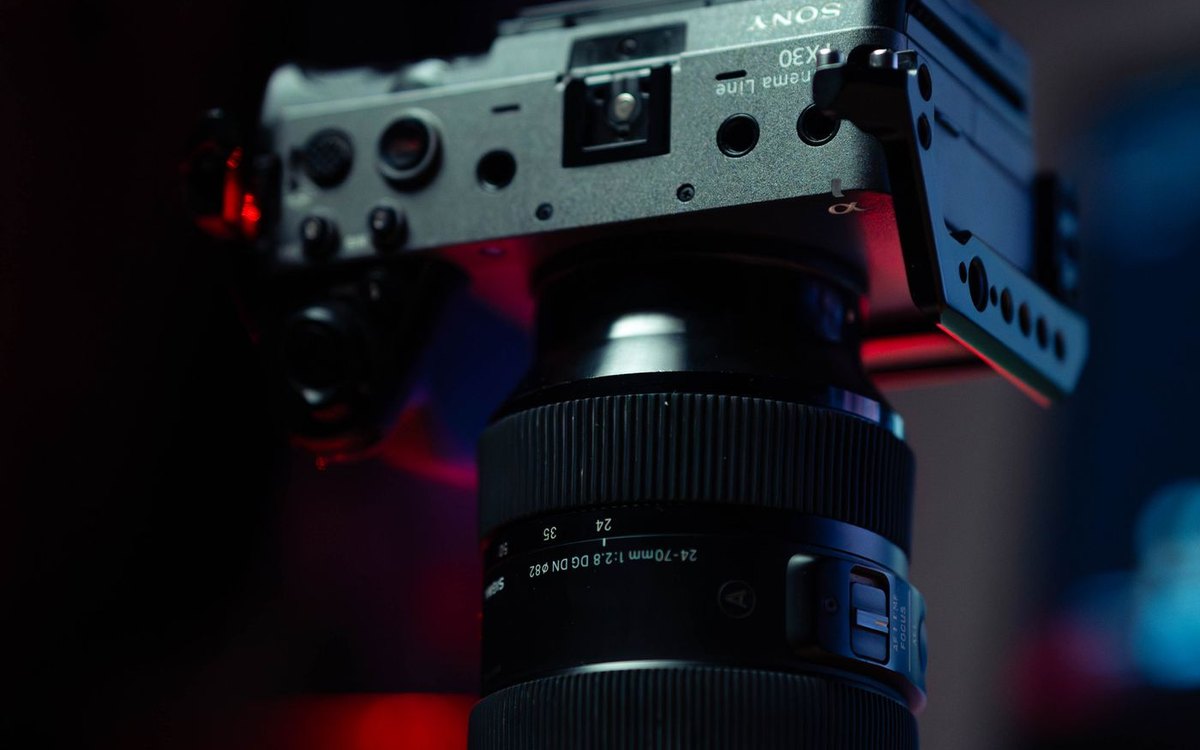
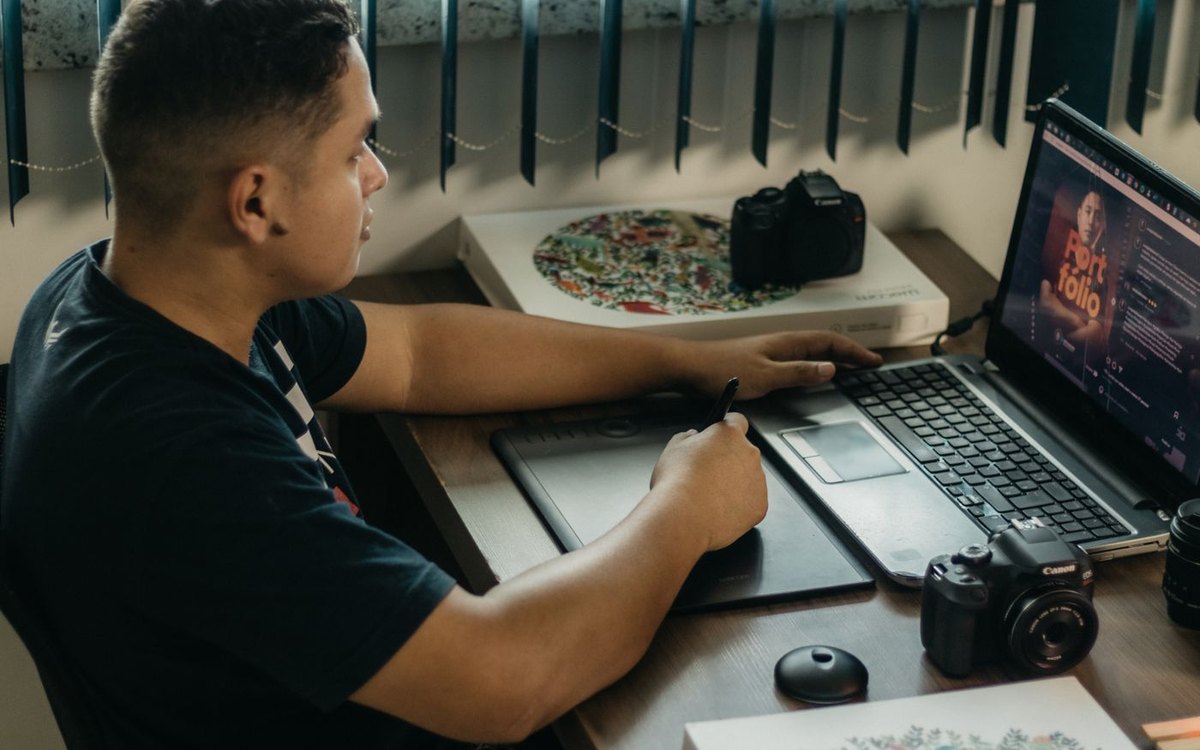
The first cut of a short film can be painfully slow on a laptop even when the storage drive reads the source files quickly. The problem may be decoding: the format your camera uses to keep its files small is asking the computer to unpack several frames before showing one. Put a correction on a layer, draw a title and open a second camera angle, and playback can become too erratic to judge a cut. A proxy workflow substitutes lighter editing copies during this creative work, then points the editor back to full-resolution originals for delivery.
Separate playback, storage and final delivery
Copy the camera media intact to a folder that will remain available throughout the project. When a camera stores sidecar data or spans a long clip across multiple files, keeping the original card structure can preserve how the editor imports it. Give the day and camera a unique parent folder. Two cards can each contain a file called C0001, so changing a screen label alone may fail to prevent accidental relinks months later. Keep a verified second copy before reusing a card.
Use the video editor's proxy creation or attachment feature when it is available. Some editors have clear on-screen indicators that tell you which files are active. A quarter-pixel count can reduce the workload substantially, and an editing-oriented codec can help even when the new file isn't small by disk standards. Choose a setting that preserves frame rate, clip duration, audio channel layout and preferably timecode. The preview should remain large enough to assess the action and framing.
Work through a rehearsal before a long import
The right first media batch is three clips, not a whole weekend. Include a long take, a clip with two distinct audio channels, and one with fast action. Import originals, generate or attach proxies, then toggle back and forth on a sequence containing all three. Check that the cuts stay at the same frames and that there is no channel substitution. If you shot on a phone that varies frame timing, look closely near the end of the long clip where drift is easiest to hear. Keep a record of any transcoding workflow needed to make it stable.
If an editor plays a single proxy smoothly and stalls as soon as a complex effect starts, the effect or insufficient memory may now be the limiting factor. Lower the preview resolution, temporarily disable the effect, or render a short preview range. A proxy can't reduce the workload of every transition, motion graphic or color effect. Before replacing storage, watch whether the slowdown only occurs at effect boundaries or happens just by seeking the untouched source.
Confirm the export behaves as you expect
Reconnect originals before grading, judging focus, examining fine texture or choosing a final crop. Toggle out of proxy mode, and choose an export setting that explicitly uses originals if the software exposes that choice. Select a demanding fifteen-second range with speech, fine texture, a transition and the intended graphics. Watch the exported segment outside the editor at delivery size. Check synchronization, transitions, framing and titles. If you send captions separately, confirm that their time base matches the exported file.
Choose the kind of small copy that helps your project
Resolution and compression can be adjusted separately. A small proxy with heavily compressed frames may still be difficult to decode relative to an editing codec designed for easy seeking. A larger file on disk can perform better when the computer no longer needs to decode so much surrounding media to show a particular frame. Your choice also depends on what the machine can already accelerate. An ordinary machine may handle one camera codec easily but struggle with the unusually involved combinations a camera permits. The three-clip pilot should give you a specific result for the source and editor you'll actually use.
Work out what the proxy needs to show. If two speakers sit at the back of a wide auditorium, choose enough detail to identify who is speaking at the normal preview size. If the interview is a single large face from a single angle, a lower image may remain perfectly adequate. Keep the same framing and overall aspect for routine cutting. Files with hard-coded letterboxing or surprising crop metadata can make an editor place text against an edge that disappears as soon as the original is attached. For mixed portrait and landscape sources, verify the orientation of every camera format you plan to use, including phone clips that rely on rotation metadata.
Keep a shared project practical for a remote editor
Before transferring every proxy, use a short package containing project settings, one graphic and signed-off versions of a few illustrative clips. Ask the second person to open the package in a fresh location and recreate one simple sequence. Note how the media browser and file picker describe each item. A well-named top-level folder and a distinctive camera label can prevent a confusing auto-relink. For duplicate card filenames, compare duration, timecode and visible frames before confirming a match. The project might open without warnings even if the editor has attached the wrong compatible-looking file.
Give any added production sound the same organizational care as the picture. Some cameras or recorders have unusual multichannel flows that a small preview file may simplify. If a second or lower-level source helps with dialogue, preserve exactly how the editor can reach it. Label a guide track, sync copy and chosen original so the remote editor knows which reflects the finished aim. A production sound folder should travel with the timelines even if the camera-original transfer will happen later. Write down any mixed-rate exception instead of expecting the picture edit to explain it.
Allow for different failure modes and different travel plans
Suppose you have to finish a rough cut while traveling with only lightweight media. Load a laptop from its travel drive, disconnect your normal material with the project closed and reopen the project in the travel condition. Try seeking and making an ordinary edit. If files are linked on the basis of absolute paths, the startup may present a list of missing originals even though proxies are present. Practice the editor's supported route for proxy-only work. Do a separate check with laptop power disconnected if that reflects your situation. Power settings can affect playback enough that a workflow that ran well on a desk feels different on the journey.
At the end of travel, try relinking a saved copy of the rough cut before reopening the entire project. Scale and position choices should match. A cutaway crop should begin at the same point and show the same part of the frame. Color and contrast may change if the proxies deliberately carry a viewing transform while the originals use a flatter source encoding. Resolve that distinction before adding corrections, because a grade calculated against the wrong interpretation can seem strangely strong later. After relinking, inspect speed changes, multi-camera perspectives and stabilized sections. Such edits ask more of transcoding and metadata than an untouched clip.
Give your future self one useful storage number
Take five minutes after the pilot to note how much storage you used, how long media took to generate and whether playback stayed smooth while you trimmed. If ten minutes of footage rendered a gigabyte of proxies, an eight-hour project of similar footage needs a rough allowance based on that observed ratio. Variable rates and different formats mean it will be an estimate, but it can help you decide what must travel. Consider whether the project records exported captions and stills along with the media and whether the laptop has room for intermediate renders separately.
Put the actual editing benefit next to the storage estimate. If reframing and cutting were already fast and only a single stabilization effect stalled, a timeline preview for the difficult effect may be the better use of time. If seeking a handful of source clips was enough to stop the edit, the effort of converting the incoming footage is easier to justify. This lets the next project benefit from the experiment rather than inherit proxy settings as sacred defaults.
Record how you generated the proxies and where they live. Settle on whether a folder stores only disposable preview files or also includes essential linked assets. A shared folder sometimes acquires approved music or titles because it was easy to reach at the time. Before clearing space, examine a completed sequence and make sure all original media and graphics remain attached after disconnecting the preview drive. A short archive note that documents the folders and tests will also help whoever opens the project to make a correction during a later delivery.
The decisive test comes after moving the project. Keep originals, project data, custom graphics and linked audio organized under a few clear folders. Simulate opening the project from a second drive and relink to full-resolution media. Temporary proxies can often be regenerated, while the original media and an unsaved timeline are difficult to replace. A workflow that delivers one test swiftly and can be reopened later is better preparation than accumulating a fast collection of editing copies you can no longer connect.
If someone reviews a cut over a file-sharing link, give that file its own delivery name. A small approval movie and a linked proxy serve different purposes. The review copy should have an accurate start and finish, understandable sound and the correct revision, even though neither copy needs to be the finished master.